Hi everyone,
So I have been trying to get together some hands on 4.1 videos for you guys (and girls)
however KB1011292 has been my main reason for not upgrading.
What is KB1011292 I here you ask?:
"VMware View Composer 2.0.x is not supported in a vSphere vCenter Server 4.1 managed environment as vSphere vCenter Server 4.1 requires a 64 bit operating system and VMware View Composer does not support 64 bit operating systems.
VMware View 4.0.x customers who use View Composer should not upgrade to vSphere vCenter Server 4.1 at this time. Our upcoming VMware View 4.5 will be supported on VMware vSphere 4.1."
As you know the supported way of upgrading your vSphere enviroment is like this:
1) Upgrade vCenter
2) Upgrade ESX hosts
3) Upgrade vmware tools
4) Upggrade vm hardware version.
Therefore if you run VMware View 4 with composer your trip into 4.1 greatness is going to come grinding to a halt with step 1.
Having VDI is great however it makes upgrading a pain...so roll on VMware View 4.5 with your 64bit composer.
And for those not tide to VDI here is the Vsphere upgrade guide:
Upgrade Guide
Tuesday, 20 July 2010

Tuesday, 13 July 2010
vSphere 4.1!
OK, so vSphere 4.1 is out! and now the embargo is lifted I can finally share some of the awesome new features in 4.1.
Now lets be honest there are so many new and cool features in 4.1 that most other companies would probably release it as a version 5.0!But VMware release it as a point release...and that's cool.
Enough of the chit chat you did not come here to hear how great VMware is, its more about what are these new features? Is it worth upgrading to? and are they worth all the fuss?
So the features:

and here is a summary of the features that I think really count and why:
1)Storage I/O control
Prioritized use of storage (similar to how compute is prioritized with vSphere)
this means you can now make sure that your "VIV"s or Very Important VMs get the IO they need when you have IO congestion. This is done via the I/O Shares within the VM properties.
2)Network I/O Control
Set different levels of service per Storage Flow type.
virtual machine, vMotion, FT, and IP storage traffic.
This means you can make iSCSI or NFS take priority over vMotion.
But there is a gotcha:
Enabled with Distributed Switch only and therefore Enterprise Plus only
3)Memory Compression
Slower than real memory but much faster than swapping to disk.
Improves the performance for the VM when under contention as far less memory is swapped to disk.
4)vMotion Performance Increases and Scale Increases
Allows up to 4 on a 1Gbps network and 8 on a 10Gbps network.
5) Storage vMotion Scale Increases
Allows up to 128 (both VMFS and NFS)
6) DRS Host affinity
Allows you set set rules on where your VMs vMotion to when DRS needs to move them.
e.g. VM W2003-DC1 only goes to DRS Group 1, however VM W2003-Exchange only goes to DRS Group 2.
Here is where you create the rules:

7)vStorage API for Array Integration
This is another great feature (if supported by your SAN),
essentially this means vSphere can interact directly with your SAN.
Therefore instead of copying the files from one datastore to another, it instructs the SAN to move the blocks for you! Increasing the performance for Storage vMotion and Provisioning VMs etc
Also noteworthy:
4.1 will be the last release for ESX (ESX Classic) from now on there will only be ESXi releases
The binaries are avalible now so go grab them!
References:
Thanks for John Toyer@vmware
Now lets be honest there are so many new and cool features in 4.1 that most other companies would probably release it as a version 5.0!But VMware release it as a point release...and that's cool.
Enough of the chit chat you did not come here to hear how great VMware is, its more about what are these new features? Is it worth upgrading to? and are they worth all the fuss?
So the features:

and here is a summary of the features that I think really count and why:
1)Storage I/O control
Prioritized use of storage (similar to how compute is prioritized with vSphere)
this means you can now make sure that your "VIV"s or Very Important VMs get the IO they need when you have IO congestion. This is done via the I/O Shares within the VM properties.
2)Network I/O Control
Set different levels of service per Storage Flow type.
virtual machine, vMotion, FT, and IP storage traffic.
This means you can make iSCSI or NFS take priority over vMotion.
But there is a gotcha:
Enabled with Distributed Switch only and therefore Enterprise Plus only
3)Memory Compression
Slower than real memory but much faster than swapping to disk.
Improves the performance for the VM when under contention as far less memory is swapped to disk.
4)vMotion Performance Increases and Scale Increases
Allows up to 4 on a 1Gbps network and 8 on a 10Gbps network.
5) Storage vMotion Scale Increases
Allows up to 128 (both VMFS and NFS)
6) DRS Host affinity
Allows you set set rules on where your VMs vMotion to when DRS needs to move them.
e.g. VM W2003-DC1 only goes to DRS Group 1, however VM W2003-Exchange only goes to DRS Group 2.
Here is where you create the rules:

7)vStorage API for Array Integration
This is another great feature (if supported by your SAN),
essentially this means vSphere can interact directly with your SAN.
Therefore instead of copying the files from one datastore to another, it instructs the SAN to move the blocks for you! Increasing the performance for Storage vMotion and Provisioning VMs etc
Also noteworthy:
4.1 will be the last release for ESX (ESX Classic) from now on there will only be ESXi releases
The binaries are avalible now so go grab them!
References:
Thanks for John Toyer@vmware
Friday, 9 July 2010
Download my videos!
Hi Everyone,
I noticed last night (and was messaged by a few people) that some of my latest videos seem to have been encoded in a lower resolution, therefore I have reencoded, reupped and reembedded these videos.
However I wanted to take this opportunity to let you know that one of the reasons I chose Vimeo is that you can download my videos for free!
Registration is much quicker than most, you can download all my videos and then play them back any time.
Once you register you will see a "Download Video" option on the right hand side.
Here are some links to get you started:
Vyatta Internet Gateway
Vyatta Remote Access OpenVPN lab with NAT and Firewall setup
Vsphere within VMware Workstation 7 Part 1
Samba Cluster with GFS 2, Centos 5, iSCSI and Openfiler - Part 1
Router on a Stick within vSphere using Vyatta and Optimizing for 1Gbps Routing - Part 1
Enjoy (offline!)
I noticed last night (and was messaged by a few people) that some of my latest videos seem to have been encoded in a lower resolution, therefore I have reencoded, reupped and reembedded these videos.
However I wanted to take this opportunity to let you know that one of the reasons I chose Vimeo is that you can download my videos for free!
Registration is much quicker than most, you can download all my videos and then play them back any time.
Once you register you will see a "Download Video" option on the right hand side.
Here are some links to get you started:
Vyatta Internet Gateway
Vyatta Remote Access OpenVPN lab with NAT and Firewall setup
Vsphere within VMware Workstation 7 Part 1
Samba Cluster with GFS 2, Centos 5, iSCSI and Openfiler - Part 1
Router on a Stick within vSphere using Vyatta and Optimizing for 1Gbps Routing - Part 1
Enjoy (offline!)
Sunday, 4 July 2010
Setting up Windows 2008 Network LoadBalancing with vSphere
So I came across a few posts recently during my travels where a couple of
people were having issues with setting up Windows Network Load Balancing within
vSphere and in particular with Distributed vSwitches.
So here we go - how to setup NLB with IIS:

And here is the video:
1)Setting up NLB
2)Going through setup of vSphere Enviroment
3)Installing IIS
4)Testing for Failure
5)Going Through the vDS settings
Enjoy!
people were having issues with setting up Windows Network Load Balancing within
vSphere and in particular with Distributed vSwitches.
So here we go - how to setup NLB with IIS:

And here is the video:
1)Setting up NLB
2)Going through setup of vSphere Enviroment
3)Installing IIS
4)Testing for Failure
5)Going Through the vDS settings
Setting up Windows Network Load Balancing within vSphere from Roggy on Vimeo.
Enjoy!
Sunday, 20 June 2010
New Vyatta Appliance!
This is the most up to version of the VC6.0 release (June 01, 2010)
with VMware tools installed and ready to go.
Here is the download from VMware:
http://www.vmware.com/appliances/directory/383813
and the direct link:
here
with VMware tools installed and ready to go.
Here is the download from VMware:
http://www.vmware.com/appliances/directory/383813
and the direct link:
here
VMware View 4 - Tour!
Hey Everyone,
This is a long overdue video however it should be worth it :)
Hopefully this video will help those of you trying to get to griping with VDI/VMware View and answers questions like:
1) What is the composer? What does it do?
2) What is the agent? How do I fix "waiting for agent"?
3) What is PCoIP?
etc..
Reference Diagram:
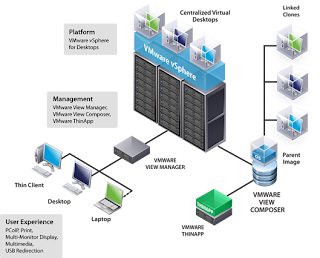
Part 1:
Tour of VMware View 4
Components Required
Where to install components
What each bit does
Part 2:
Using the VMware View Manager
Desktop pools
Entitlement
Playing 720p video within VMware View Client with PCoIP
Enjoy!
Sources:
Picture taken from here (ty!):
http://www.ntpro.nl/blog/uploads/
This is a long overdue video however it should be worth it :)
Hopefully this video will help those of you trying to get to griping with VDI/VMware View and answers questions like:
1) What is the composer? What does it do?
2) What is the agent? How do I fix "waiting for agent"?
3) What is PCoIP?
etc..
Reference Diagram:

Part 1:
Tour of VMware View 4
Components Required
Where to install components
What each bit does
VMware View 4 - Part 1 from Roggy on Vimeo.
Part 2:
Using the VMware View Manager
Desktop pools
Entitlement
Playing 720p video within VMware View Client with PCoIP
VMware View 4 - Part 2 from Roggy on Vimeo.
Enjoy!
Sources:
Picture taken from here (ty!):
http://www.ntpro.nl/blog/uploads/
Subscribe to:
Posts (Atom)